Using Filters & Metadata
Narrow Down Results with Precision
Ubiquity doesn't just search by file name — it reads the metadata embedded in your files to help you find exactly what you need. With filters, you can refine your search by file type, size, date, and other properties, all without leaving the search bar.
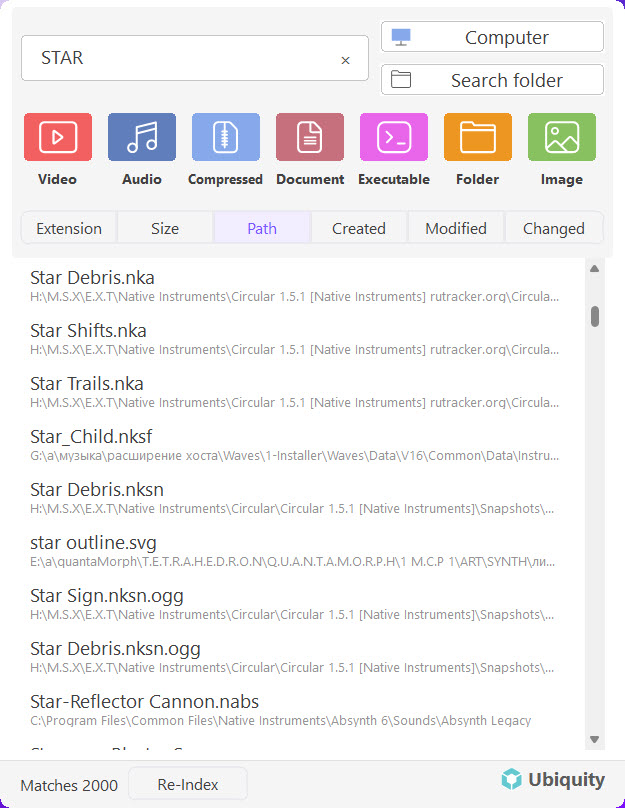
How Filters Work
When you type a search query in Ubiquity, it returns every matching file across your index. Filters let you reduce that set to only the files that meet specific criteria. You can apply multiple filters at once to get extremely precise results.
Filters are activated by typing a filter keyword followed by a colon and the value you want to match. Ubiquity recognizes these filter types:
-
Type filter.
Usetype:pdf,type:docx,type:jpg, or any file extension to limit results to a specific file type. -
Size filter.
Usesize:>10mborsize:<1mbto find files above or below a certain size. -
Date filter.
Usedate:this week,date:2025, ordate:>01/01/2025to find files modified within a time range. -
Folder filter.
Usefolder:Documentsto restrict results to a specific folder or location in your index.
Example: Typing report type:pdf date:this month will find all PDF files with "report" in the name that were modified this month.
Metadata Ubiquity Reads
Beyond file names, Ubiquity indexes a rich set of metadata from your files. This is what makes filters so powerful — the index is already aware of these properties before you even search.
Indexed Metadata
- File name & extension — the basics, always available.
- File size — in bytes, kilobytes, megabytes, or gigabytes.
- Last modified date — when the file was last saved or changed.
- Created date — when the file was originally created.
- File path & folder — the full location within your file system.
- Document title — for PDFs and Office documents, the internal title property.
- Author / Creator — the person who created the file, when available in metadata.
- Tags & keywords — custom tags embedded in files like PDFs and images.
Combining Multiple Filters
Filters become truly powerful when combined. You can stack multiple filters in a single query to narrow results as tightly as you need.
presentation type:pptx size:>5mb— large PowerPoint files named "presentation."photo folder:Pictures type:jpg date:last year— JPEG photos from last year in your Pictures folder.budget type:xlsx date:2025— Excel spreadsheets related to budget from 2025.
Tip: You don't need to remember exact filter syntax. Ubiquity provides autocomplete suggestions as you type filter keywords, so you can discover available filters on the fly.
Why Metadata Matters
File names alone are often not enough to find what you need — especially when you have hundreds of similarly named files. Metadata gives Ubiquity a deeper understanding of each file, letting you search by context rather than just naming.
- Find the latest version. Two files named "report.docx"? Use the date filter to get the most recent one.
- Locate large files. Running low on disk space? Use
size:>100mbto find the biggest files in your index. - Filter by author. In a shared workspace? Use the author metadata to find files created by a specific person.
- Track document types. Quickly pull up all PDFs, spreadsheets, or images without browsing through folders.
Next Steps
Now that you understand filters and metadata, explore more of what Ubiquity can do:
- Instant File Search & Filtering — Learn about fast, real-time search
- Search Within a Folder — Limit results to a specific location
- Setting Up Your First Search Index — How Ubiquity builds its index