First Launch & Initial Setup
It's Easier Than You Think
Welcome to Ubiquity! One of the best things about our search tool is how incredibly simple it is to get started. Unlike complex search engines with endless configuration menus, Ubiquity is designed to do one thing perfectly: find your files instantly. With just basic search functions, there's very little setup required, and you'll be searching in seconds.
What Happens on First Launch
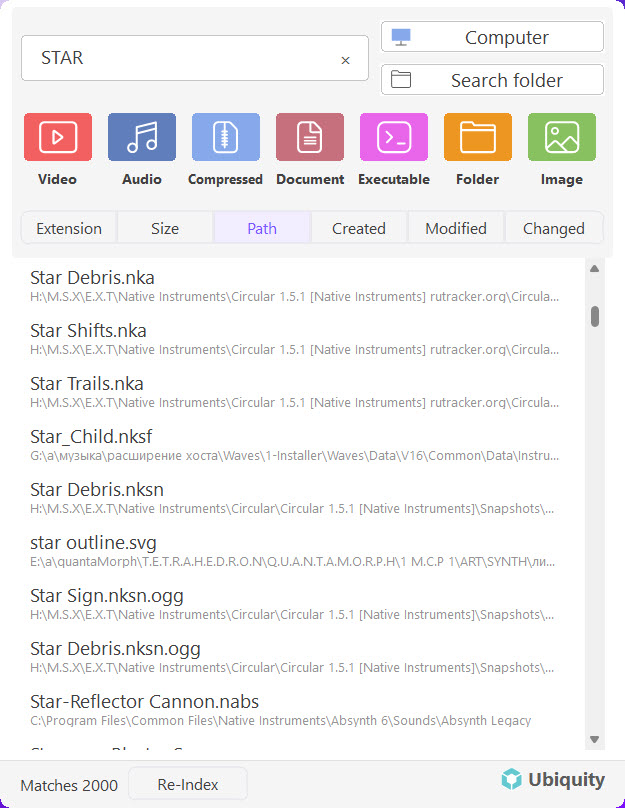
When you open Ubiquity for the first time, you'll see a clean, simple interface. Here's what to expect:
-
Launch Ubiquity.
You can find Ubiquity in your Start Menu, or use the keyboard shortcut Ctrl + Space to bring it up instantly. -
Start typing.
That's it! There's no complicated setup wizard. Just start typing what you're looking for in the search bar. -
Browse your results.
Ubiquity will show you matching files as you type. Click any result to open it instantly.
Pro Tip: Ubiquity indexes your files in the background automatically. The first time you search, it might take a moment to build the index. Subsequent searches will be lightning fast!
Understanding the Interface
The Ubiquity interface is intentionally minimal. Here's what you're seeing:
- Search Bar: The main input field where you type your search query
- Results List: Files that match your search appear below
- Quick Actions: Hover over any result to see options like Open, Open Folder, or Copy Path
Customizing Your Search (Optional)
While Ubiquity works great out of the box, you can make some optional adjustments if you want:
- Index Locations: Click the gear icon to choose which folders to index (by default, it indexes common locations)
- Keyboard Shortcut: The default is Ctrl + Space, but you can change it in Settings
- Appearance: Switch between light and dark themes in the settings menu
Remember: Ubiquity is designed to be simple. You don't need to configure anything to start using it effectively. The basic search functions are powerful enough for everyday use!
Next Steps
Now that you're all set up, here are some helpful articles to get the most out of Ubiquity:
- Installing Ubiquity on Windows - If you haven't installed it yet
- Basic Search Tips - Learn some simple tricks for faster searching
- Ubiquity Won't Launch - Troubleshooting if something goes wrong